
How to set up HotPlayer on Android TV
A step-by-step guide to watch IPTVin IPTV with HotPlayer on your Android TV: install the app, sign in with your login details and start streaming.
Follow the steps
- 1
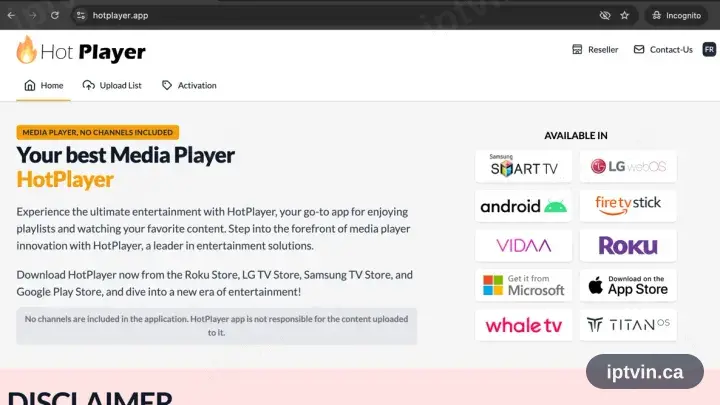
Visit apk.hotplayer.app
In the TV browser open apk.hotplayer.app. The file downloads on arrival — nothing needs selecting.
- 2
Install the file, then open HotPlayer
Open the downloaded package and confirm. Authorise the browser or file manager if prompted, then launch HotPlayer.
- 3
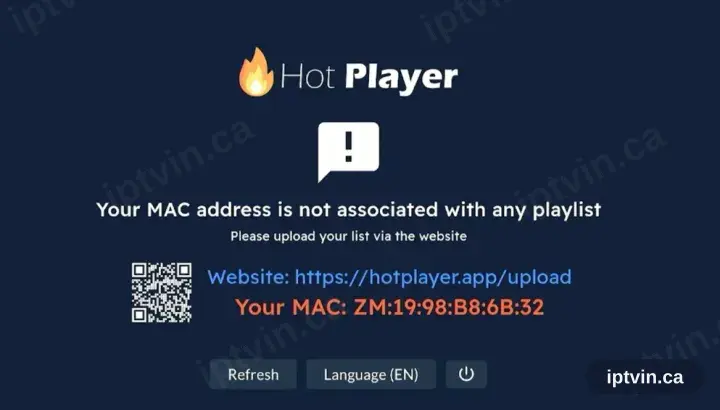
HotPlayer requests a playlist
On first launch HotPlayer reports no playlist and displays a device ID alongside hotplayer.app/upload. Leave the screen where it is.
- 4
Register the playlist at hotplayer.app/upload
From a browser, open hotplayer.app/upload. Set the source to Xtream Codes, supply the server URL, username and password from your activation email, and save.
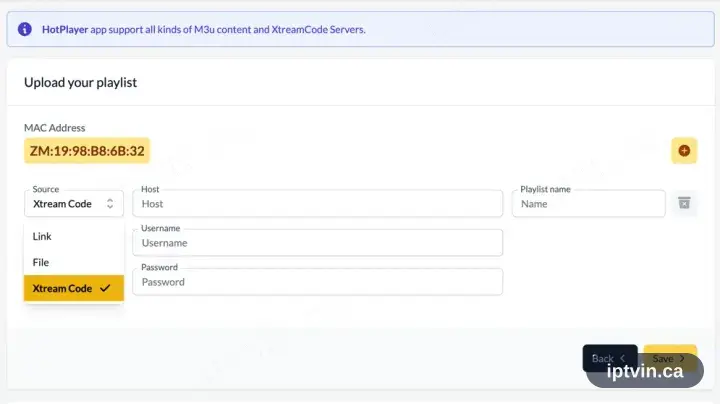
The upload page is a website rather than part of the app, so a phone, tablet or computer is required for this step.
- 5
Return to the app and select Refresh
Back in HotPlayer, choose Refresh. The saved playlist is picked up straight away.
- 6
Playback time
The channel list, films and series load in. Select a channel to begin playback.
Installing HotPlayer on Android TV: what is different
Android TV and Google TV boxes install HotPlayer from the Google Play Store on the device — not from your phone's Play Store.
If HotPlayer is not on Play for your box, Android TV does allow sideloading: install a downloader app, then enable install-from-unknown-sources for it in Settings.
Most Android TV remotes have no pointer. HotPlayer is far easier to drive if it supports D-pad navigation, which is why it is recommended here.
Ready to watch, or stuck on a step?
Start with a trial if you do not have a login yet. If something is not working, our team can help in English or French.