
How to set up TiviMate on Android
A step-by-step guide to watch IPTVin IPTV with TiviMate on your Android: install the app, sign in with your login details and start streaming.
Follow the steps
- 1
Find TiviMate on Google Play
Open Google Play on the phone or tablet, search TiviMate IPTV Player, then choose Install.
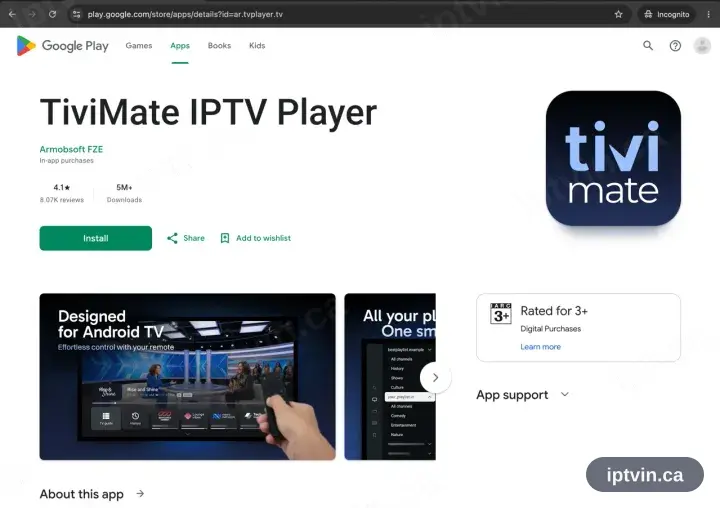
TiviMate targets television screens. It runs on a handset, but the layout assumes a remote — IPTV Smarters Pro below is the gentler option on a phone.
- 2
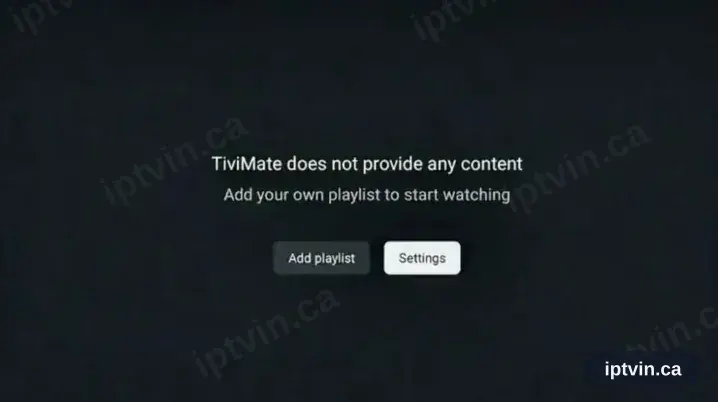
Launch TiviMate and take Add playlist
Start the app and choose Add playlist on the opening screen.
- 3
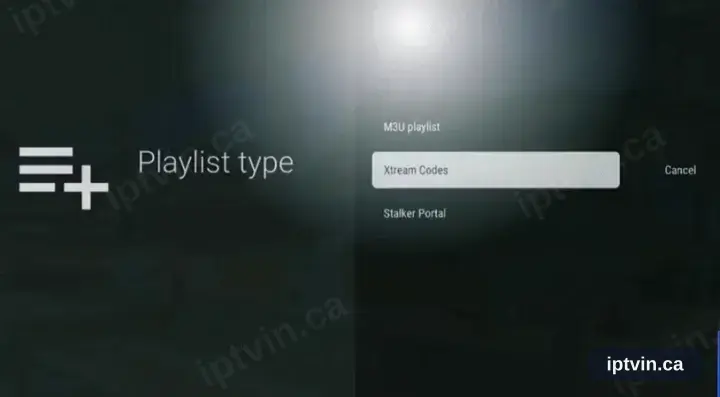
Choose the Xtream Codes type
Set the playlist type to Xtream Codes rather than M3U.
- 4
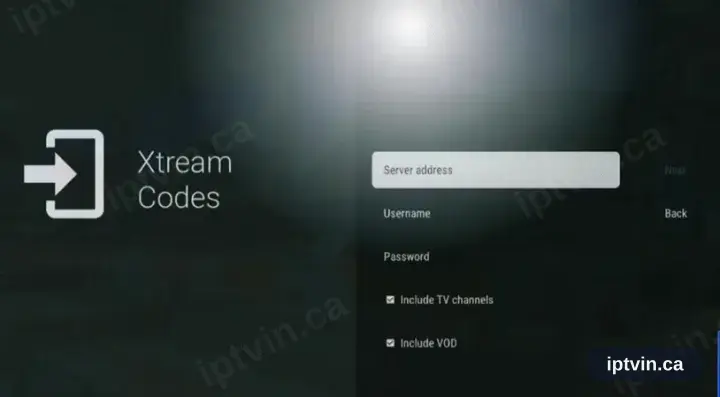
Fill in the three fields
Copy the server URL, username and password from your activation email. All three are case sensitive.
- 5
Playback time
TiviMate loads the channel list, films and series. Select a channel to begin playback.
Installing TiviMate on Android: what is different
On an Android phone or tablet, TiviMate installs from Google Play in the usual way — no rooting and no developer settings.
If you install TiviMate from an APK instead, Android asks once for permission to install from that source. Grant it to the browser or file manager doing the install, not system-wide.
Playing over mobile data works, but a live HD channel uses roughly 1–2 GB per hour — worth checking your plan before a full match.
Ready to watch, or stuck on a step?
Start with a trial if you do not have a login yet. If something is not working, our team can help in English or French.