
How to set up HotPlayer on Fire TV Stick
A step-by-step guide to watch IPTVin IPTV with HotPlayer on your Fire TV Stick: install the app, sign in with your login details and start streaming.
Follow the steps
- 1
Part 1 · Add the Downloader utility
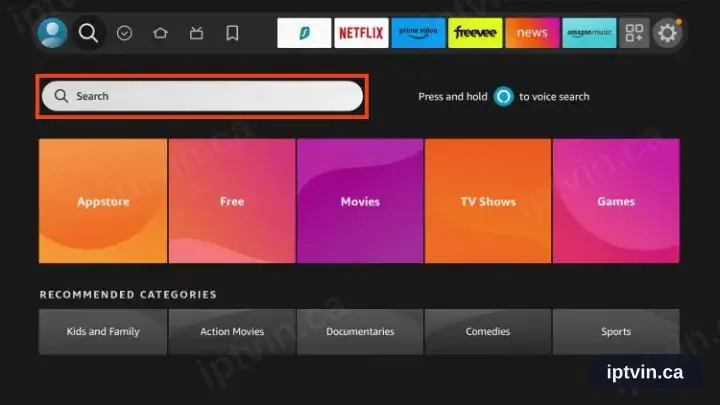
Open Fire TV search
Move to the top row of the home screen and select the magnifying glass.
- 2
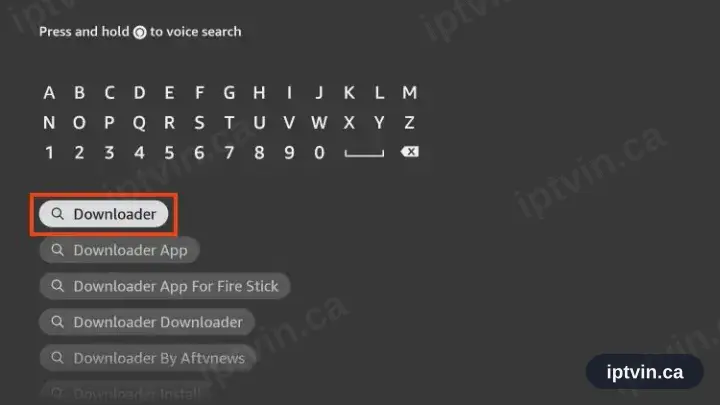
Type in Downloader
Enter Downloader on the on-screen keyboard. Suggestions narrow as you type.
- 3
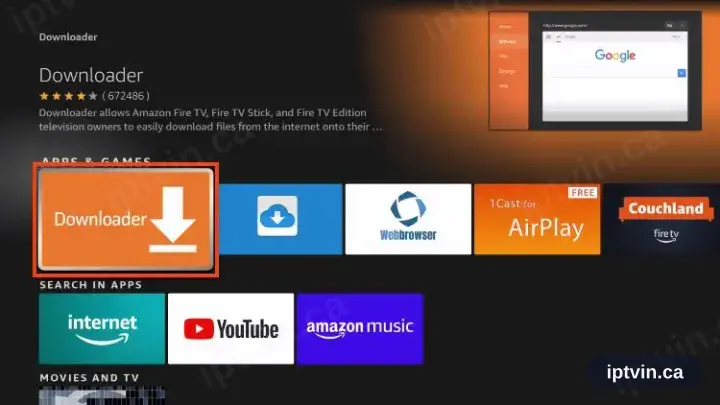
Pick the orange Downloader entry
Among the results, take the plain orange icon carrying a white arrow.
- 4
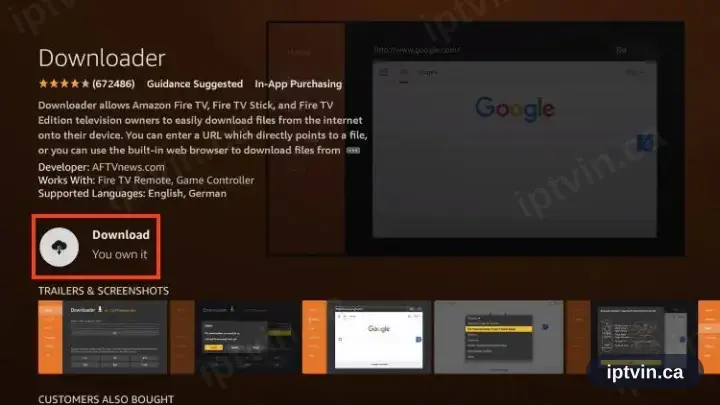
Select Download or Get
The label differs by device generation; both install from the Amazon Appstore.
- 5
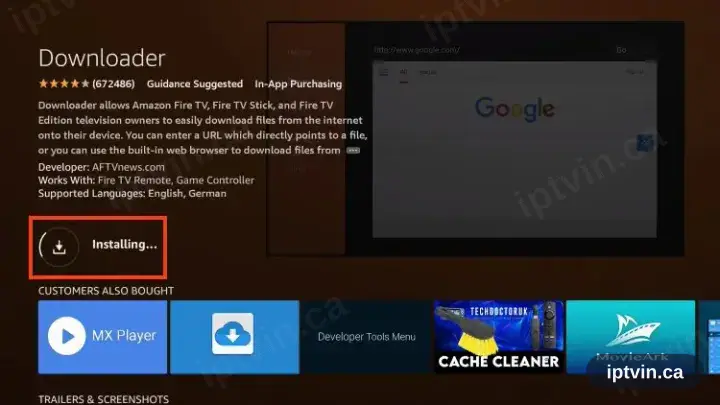
Let it finish
A progress ring runs for a few seconds. Do not press anything meanwhile.
- 6
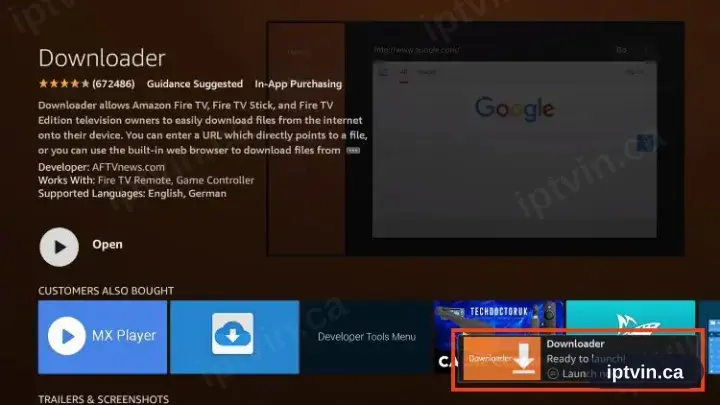
Installation complete
Open and Uninstall replace the install control once Downloader has landed.
- 7
Part 2 · Authorise Downloader
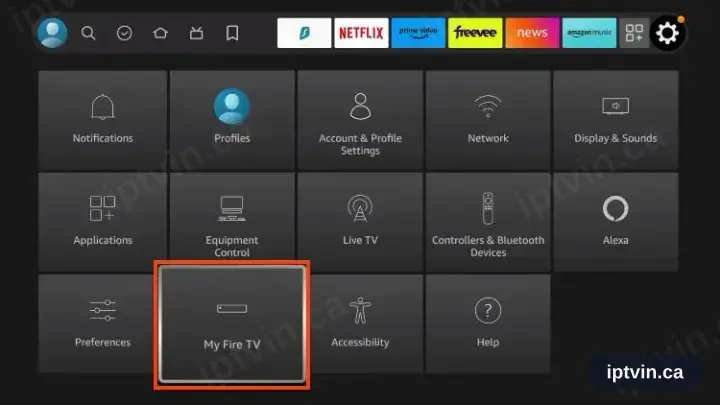
Go to Settings, then My Fire TV
Return to the home screen, open the gear icon and scroll along to My Fire TV.
- 8
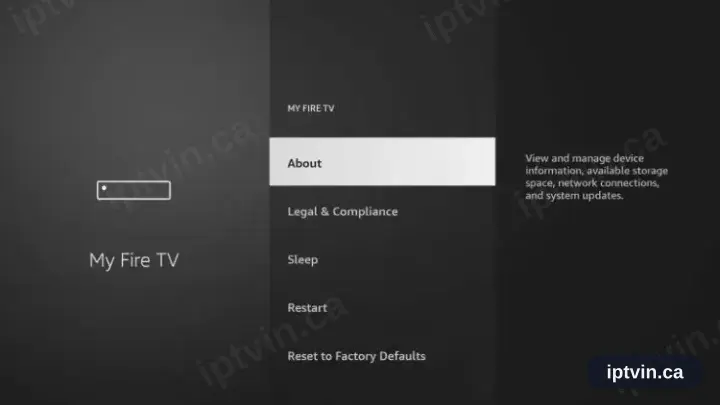
Enter About
About sits at the top of the My Fire TV list.
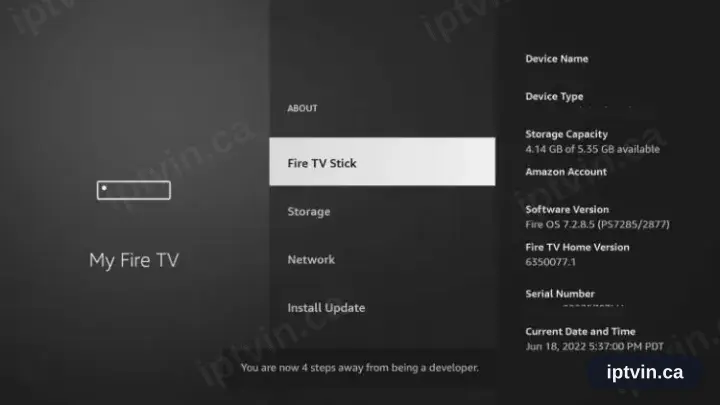
- 9
Press select seven times
Highlight your device name and press the select button seven times, until the developer notice appears.
- 10
Reopen Developer options
Step back to My Fire TV. A Developer options entry has appeared.
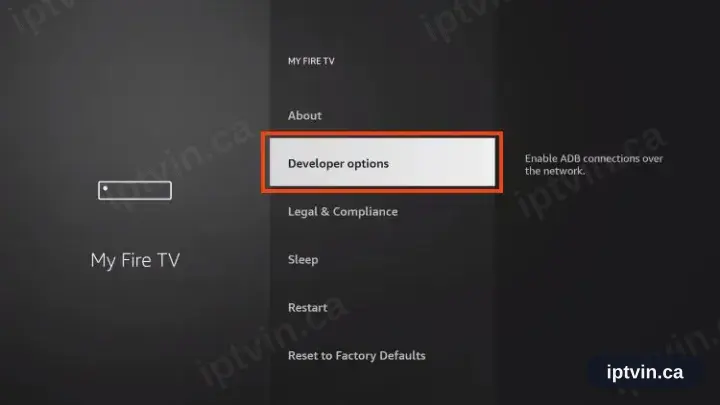
Some earlier Fire TV Sticks list Developer options directly under My Fire TV, with no trip through About.
- 11
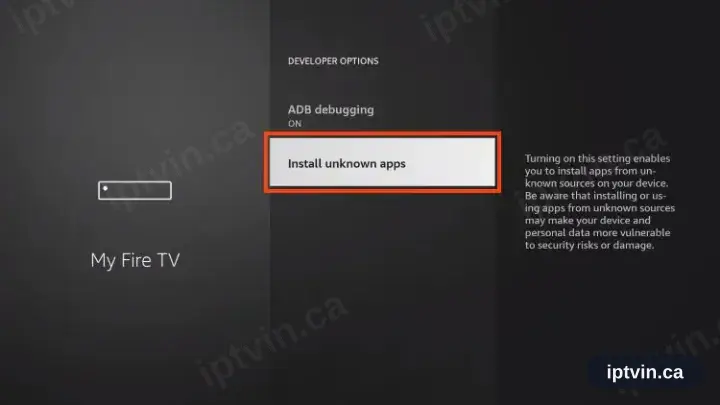
Enter Install unknown apps
Unknown means only that the source is not the Amazon Appstore.
- 12
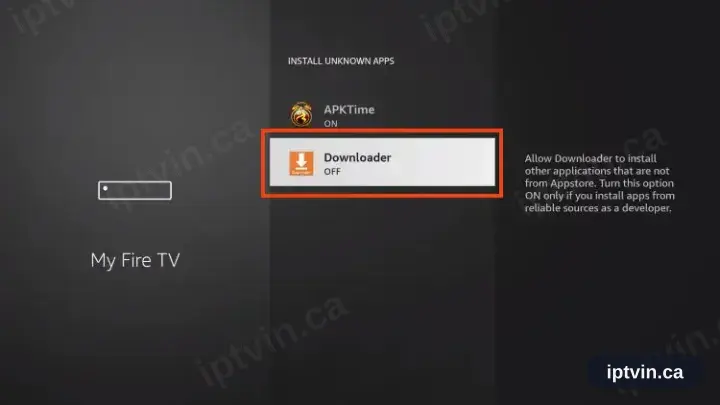
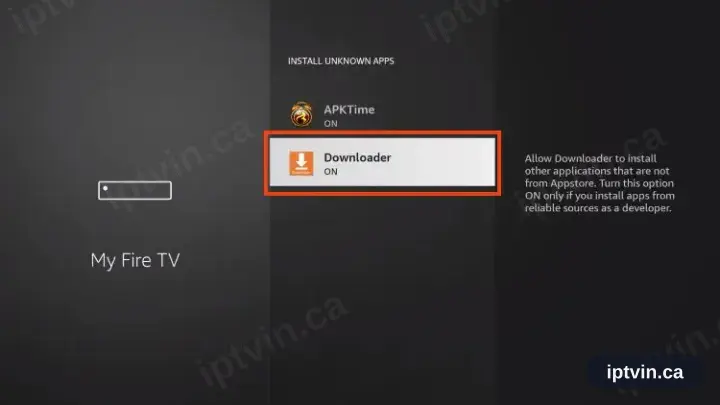
Switch Downloader on
Locate Downloader in the list of apps and toggle it on. Leave the remaining entries untouched.
- 13
Authorisation confirmed
Downloader may now install packages. The Firestick needs nothing further.
- 14
Part 3 · Add HotPlayer
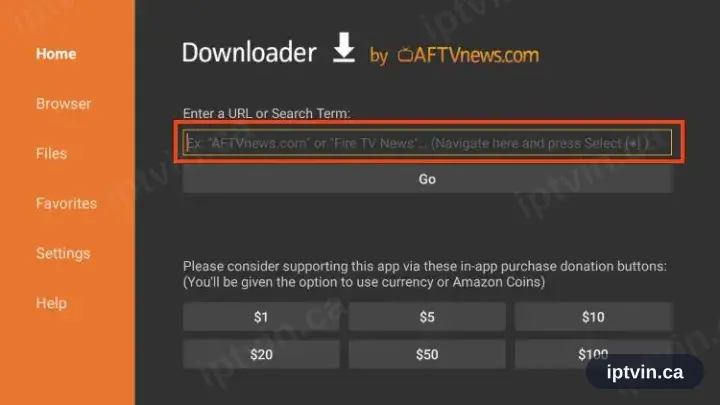
Open Downloader and focus the URL field
Launch Downloader and select the address box at the top of the Home tab.
- 15
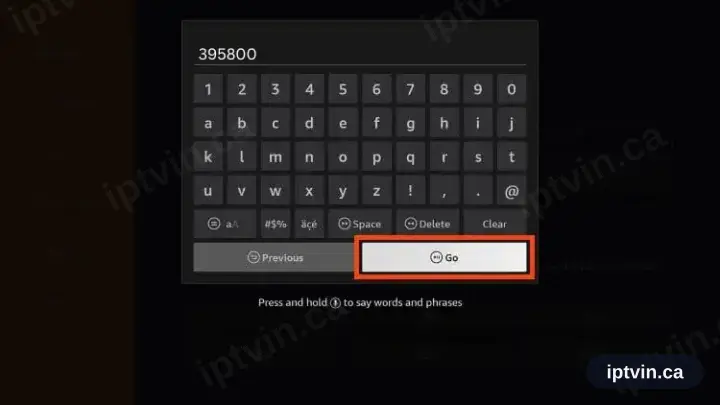
Enter 395800, then Go
Six digits, published by HotPlayer itself.
- 16
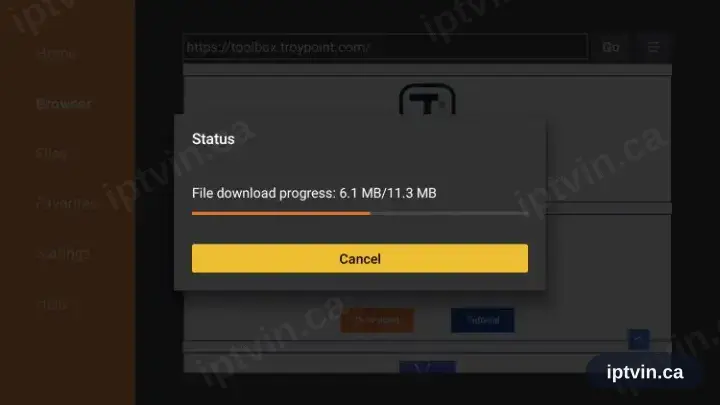
Let the download run
It begins by itself. Wait for the progress bar to complete.
- 17
Select Install
The package screen appears on its own once the file has arrived.
- 18
Select Open
Launch HotPlayer from the completion screen.
- 19
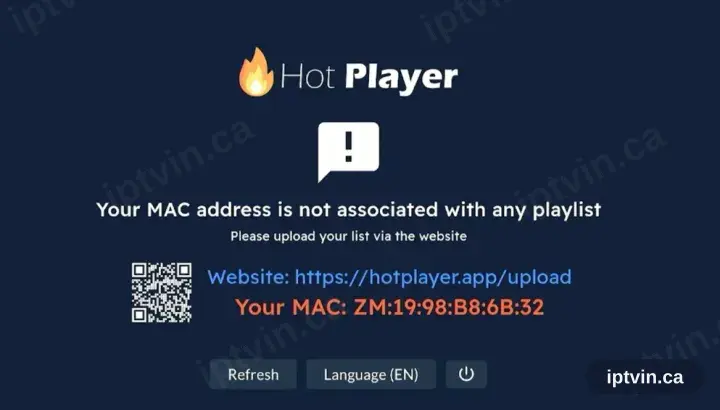
HotPlayer requests a playlist
On first launch HotPlayer reports no playlist and displays a device ID alongside hotplayer.app/upload. Leave the screen where it is.
- 20
Register the playlist at hotplayer.app/upload
From a browser, open hotplayer.app/upload. Set the source to Xtream Codes, supply the server URL, username and password from your activation email, and save.
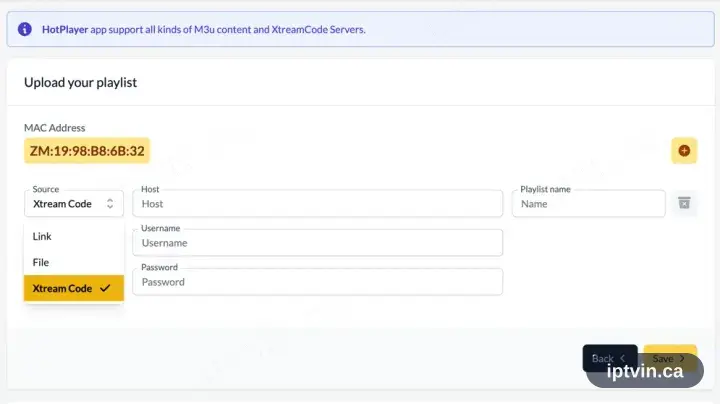
The upload page is a website rather than part of the app, so a phone, tablet or computer is required for this step.
- 21
Return to the app and select Refresh
Back in HotPlayer, choose Refresh. The saved playlist is picked up straight away.
- 22
Playback time
The channel list, films and series load in. Select a channel to begin playback.
Installing HotPlayer on Fire TV Stick: what is different
The Fire TV Stick runs Fire OS, so HotPlayer comes from the Amazon Appstore — the Google Play version will not appear here.
If HotPlayer is not in the Appstore, Fire OS permits sideloading: enable Apps from Unknown Sources for a downloader app under Settings › My Fire TV › Developer Options.
Older Sticks ship with very little free storage. Uninstall unused apps before installing HotPlayer, or the download fails near the end.
Ready to watch, or stuck on a step?
Start with a trial if you do not have a login yet. If something is not working, our team can help in English or French.