
How to set up IPTV Smarters PRO on Samsung TV
A step-by-step guide to watch IPTVin IPTV with IPTV Smarters PRO on your Samsung TV: install the app, sign in with your login details and start streaming.
Follow the steps
- 1
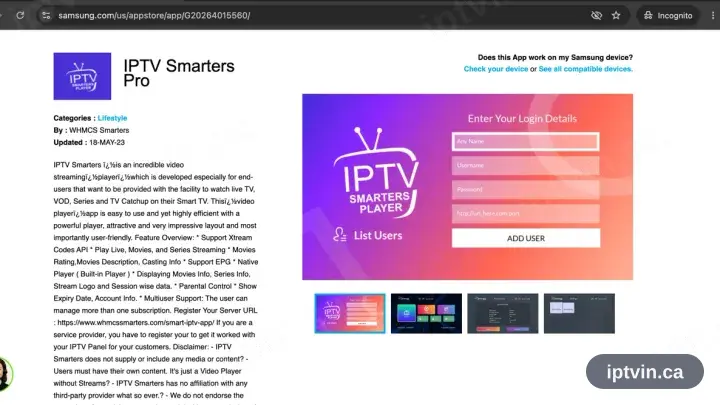
Locate IPTV Smarters in Samsung Apps
Press Home on the TV, open Apps — the Samsung store — and search IPTV Smarters.
- 2
Install, then open the app
Choose Install, wait for it to complete, then launch IPTV Smarters Pro.
- 3
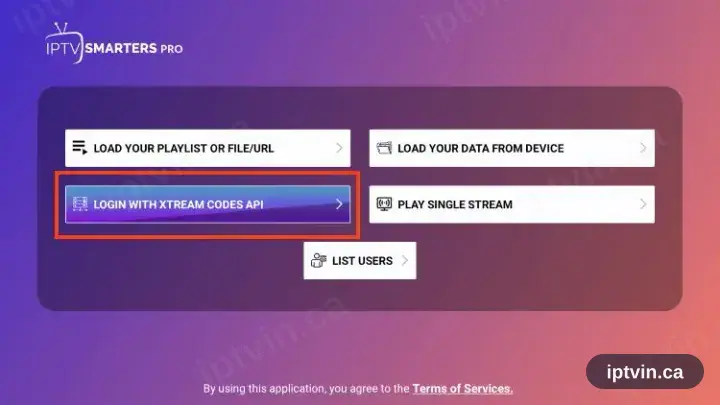
Select “Login with Xtream Codes API”
The welcome screen offers two methods. Take the Xtream Codes API option; ignore the M3U one.
- 4
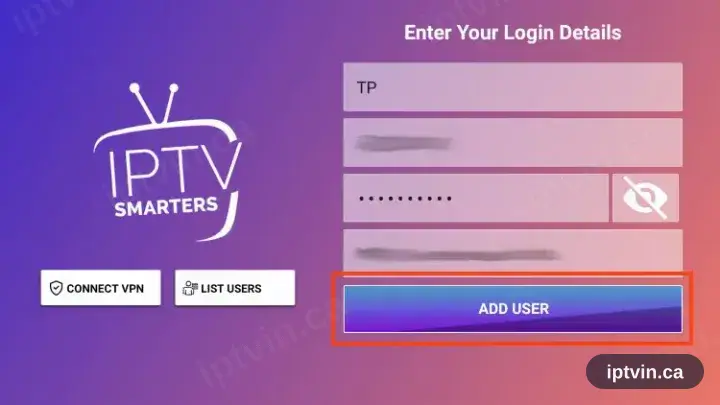
Fill in the three fields
Copy the server URL, username and password from your activation email. All three are case sensitive.
- 5
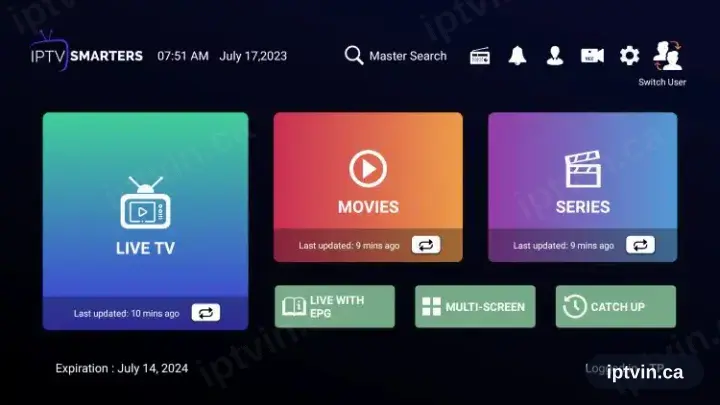
Playback time
The channel list, films and series load in. Select a channel to begin playback.
Installing IPTV Smarters PRO on Samsung TV: what is different
Samsung TVs run Tizen. Open the Samsung Apps store with the Home button on your remote, then search for IPTV Smarters PRO.
Retail Samsung sets cannot sideload an APK. If IPTV Smarters PRO is not listed for your model or region, pick another app from the device page instead.
Once installed, IPTV Smarters PRO appears in the Apps row on the Home screen — you do not need to reopen the store to launch it.
Ready to watch, or stuck on a step?
Start with a trial if you do not have a login yet. If something is not working, our team can help in English or French.